I recently started experimenting with Visual Studio 2005 and Visual Studio Tools for Office (VSTO) 2003. This entry is a technical .Net / VS2005 / VSTO blog and will probably not be of interest unless you use these tools yourself.
Yuck. Office applications allow many configuration / add-in options programmatically which are quite impressive, but do not sit well with other .Net development tools. For example, in Forms development, if we want to create a Button on a form programmatically, we declare a new Button(). In VSTO, we declare a new CommandBar, and then have to use the CommandBar.Add() method to create a new button on that toolbar.
One of the first things that I wanted to achieve – after adding a basic toolbar to Outlook 2003, was to add buttons with icons. It was frustrating that this was a topic that seemed to be omitted from the book ‘Visual Studio Tools for Office: Using C# with Excel, Word, Outlook, and Infopath’ (Carter and Lippert), and it almost entirely eluded me as to how to do it. There was the CommandBarButton.FaceId property, useful if you wanted a preset icon on your button (but no apparent documentation of what numbers should be used for which icons). Then there were the Picture and Mask properties that appeared to have relevance to this task, but I could not fathom how to use them. Web searches demonstrated some approaches, even on MSDN, that required the use of the clipboard to load an image; something that could muck up the user’s clipboard and therefore highly undesirable, it seemed to me.
Anyway, I finally found what I needed, on MSDN itself. This was one occasion when a generic web search with Google did not outperform Microsoft’s own site (prior poor recommendations that I had found turned out to refer to previous versions of .Net or VSTO).
But still in all my searches I failed to find documentation of the simplest way of assigning an icon to a button or menu entry, using the FaceId property. Possibly, I missed it; that would be easy in amongst the morass of documentation.
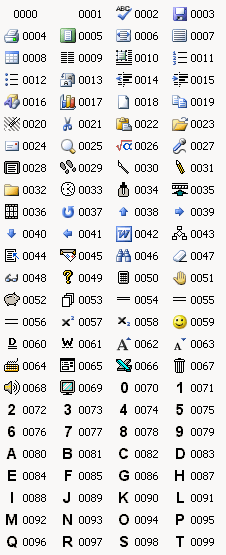
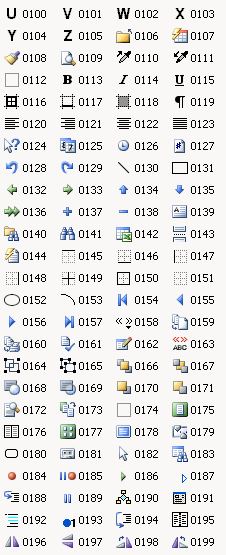
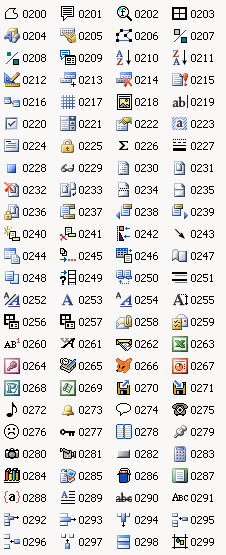
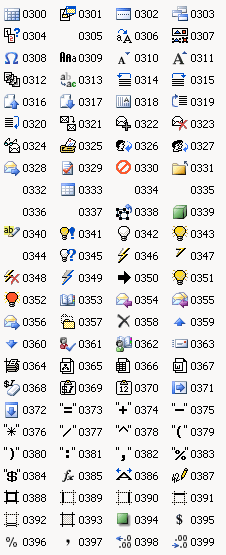
This blog documents the numbers and associated icons as discovered from using the various FaceId numbers in Outlook. I have not yet cross-checked the icon numbering with different applications. Lower down this page, I’ll comment briefly on how I got these images later in the document.
The Icons
The number to the right of the icon is the appropriate FaceId to use:
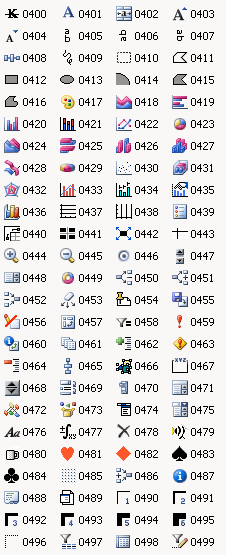
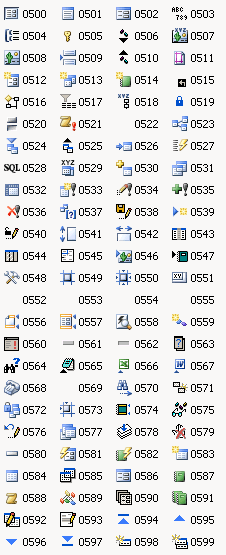
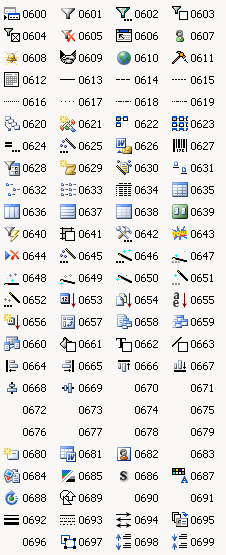
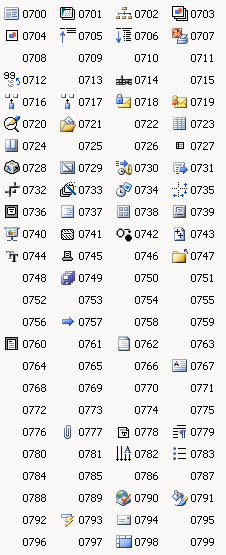
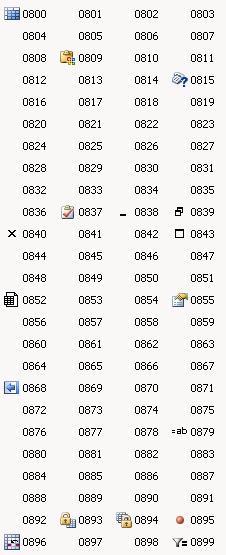
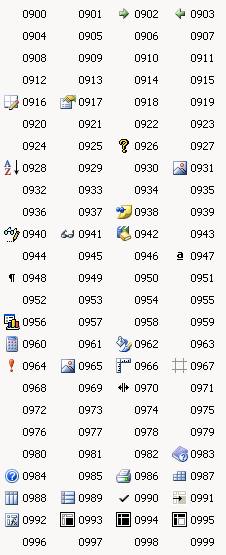
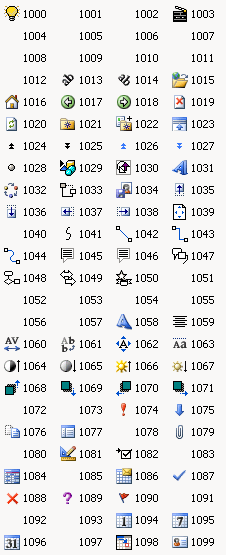
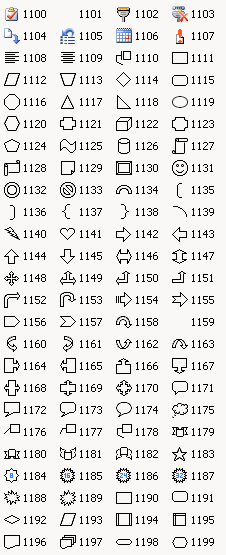
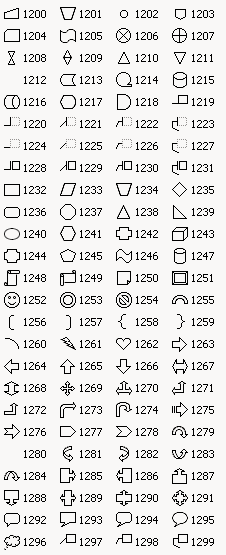
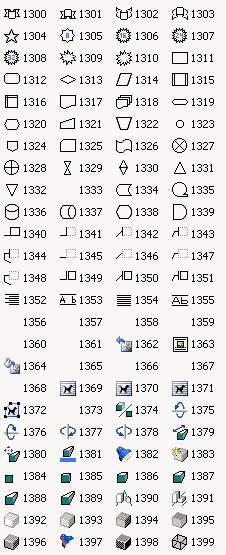
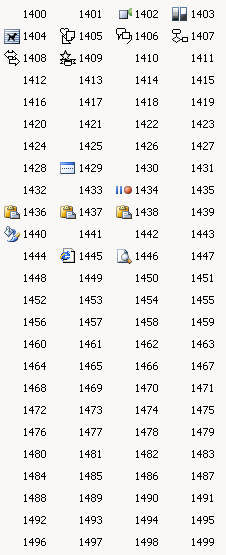
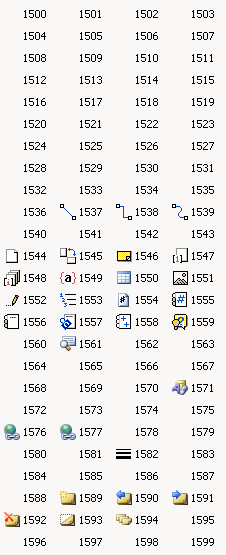
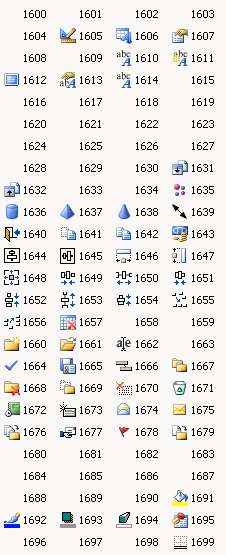
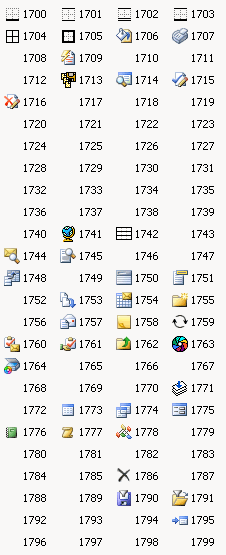
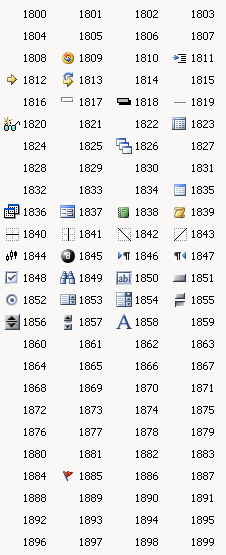
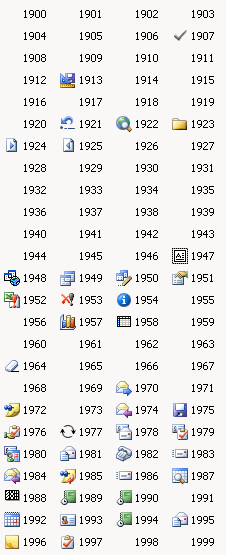
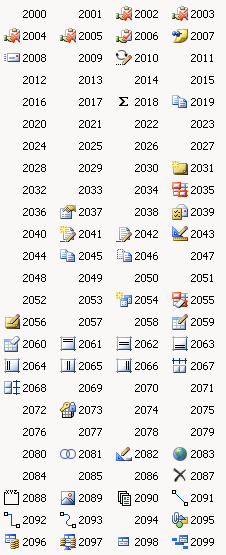
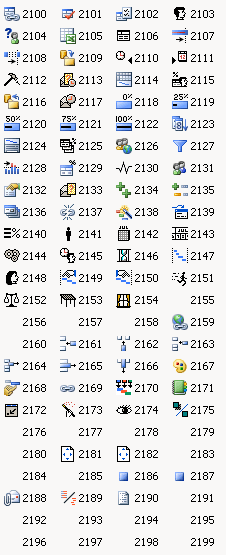
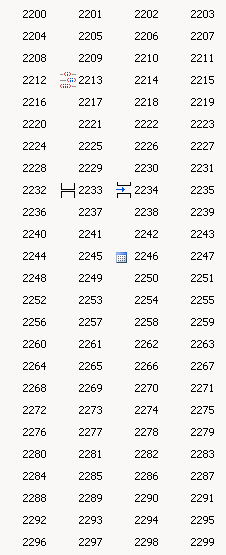
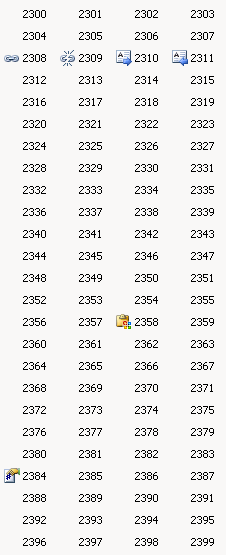
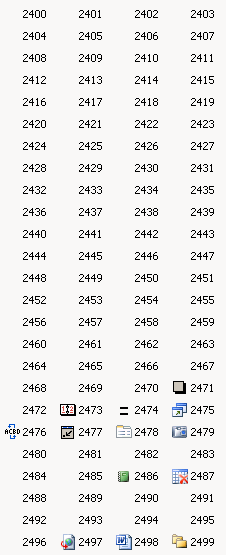
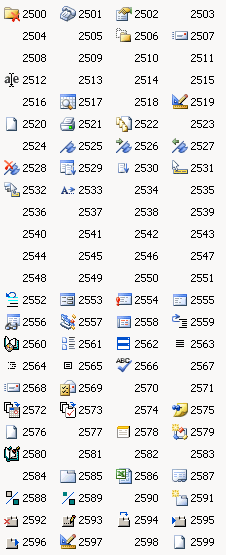
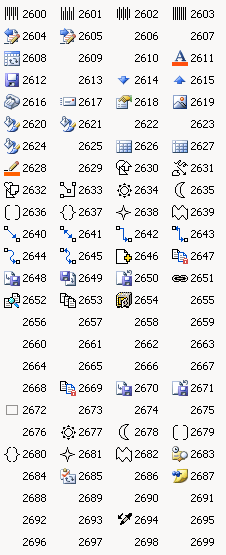
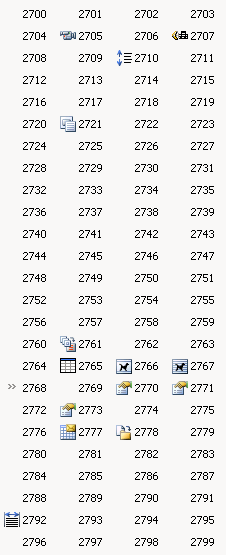
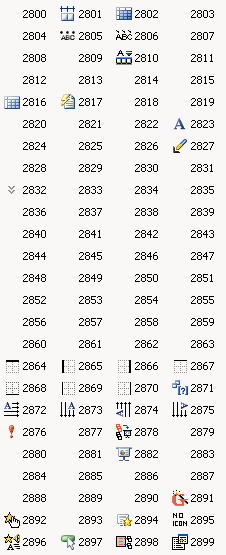
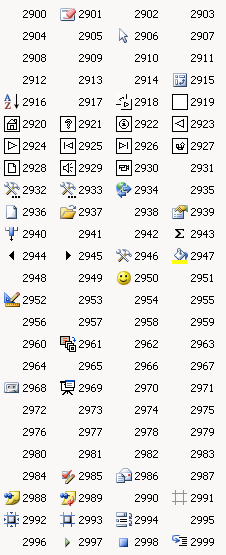
How I Made These Images
MSDN Support had a very tempting page which refers to ‘Finding FaceID Numbers for Your Microsoft Office 97 Toolbars’; but that text is not linked and does not retrieve anything on a search; though the text suggests that it (should have been) a tool to provide documentation of these FaceId’s in an Excel spreadsheet. Tempting, therefore, but fruitless (even if it referred to past versions, perhaps it might have helped?)
So, I wrote a little piece of code to create an Outlook toolbar with 104 buttons (the first 4 buttons being repeated, so there were 100 unique faceId’s), each with a FaceId and a text caption of the number used to achieve the icon. Making the Outlook window very narrow (so only the first four buttons were displayed) meant that clicking on the toolbar expansion button gave a drop-down with 100 unique buttons on. A bit of jiggery pokery with a screen-shot gave the necessary images. It was a pain to be such a manual process, but there you go; sometimes these things can’t be helped… I did decide to stop at 2999 though 😉
Maybe my OCD will cut in soon though and compel me to find the last icon…
[Added 24/1/07: I have now added a post with FaceId’s 3000 – 3999 for your enjoyment.]
[Added 25/10/09: Here is the source code for the project, which embarrasses me as the whole project was painful to get the screenshots… but here goes TestOutlookFaceId.zip.]
[Added 13/5/13: Added a new page to hold the most useful links from these pages VS 2005 Command Bar Buttons.]
Thankyou!!! I’m working on creating addins for outlook Office 2007 and you’ve just made me very happy 🙂
Any chance you might do the same for ribbon controls…? Or perhaps you know somebody else who has?
Thanks Janne, Glad this was of some help to you. I’m afraid that I have not yet played with Office 2007 and so can’t help you with the Ribbon… 🙂
VERY useful reference, thank you!! This was really hard to find online, but this post is exactly what I was looking for, a list of the icons with their FaceID number for my VS05 addin.
Thanks for this useful reference. 🙂
Thanks a lot!! This is really great. I am working on a VSTO solution & this was a Godsend.
-D
Hi,
Thanks a lot, i am also frustrated to find faceid.
thanks again 🙂
You could automate it with a little bit of code. I’m not sure if it’s ok to post it here, so I won’t. However, if you’d like I can provide it. It iterates through faces, ignoring empty ones, and saves them as files (in any format). It also demonstrates how to load custom images.
On a side note, it appears that there are 7607 icons (many are duplicates).
Thank you very much! That’s very helpful for me!
Hi,
Any ideas about all the sudden not being able to get command bar working in MS outlook 2003. Not able to debug as well. I have uninstalled the .NET Framwork 2.0 and the SDK based on other blogs.
Any help would be appreciated
Very helpful!
Thank kebab! I was able to use the icon FaceID reference using VB6 COM add-in with Outlook 2003. Haven’t yet tried in Outlook 2002.
Thank you very much
Thank you very much for this nice piece of article . Its a great help.
Thanx mate, you saved a lot of my time by posting this
Thanks m8 🙂
Thanks,
Very nice. Saves me the trouble to iterate through commandbars to see what the FaceId of a certain icon is.
Does anyone know if we’re legally allowed to use the FaceId icons in commercial Excel VSTO document customizations? The VSTO customization adds the command bars which have buttons set with FaceId values.
You would HAVE to find a hard way to do this – see http://skp.mvps.org/faceid.htm for a little utility that will help. Pip pip!
Thanks a lot, saving me for wasting time with trying out by my self 🙂
Thanks for the post. The link below was recommended in chapter 40 of Professional C# 2008 to see available images.
http://www.microsoft.com/downloads/details.aspx?FamilyID=12b99325-93e8-4ed4-8385-74d0f7661318&displaylang=en
This is a macro-enabled spreadsheet that displays icons available in Office with the related Image IDs. You will need to enable the developer tab in Excel to see those buttons.
Thanks,
Its the littl things that make a difference.
Hi,
I should honestly thank you.You probably saved my day/24 hours.
I am developing addin for outlook 2003 and was clueless about finding icons for commandbarbuttons.Probably in the same situation u had been into 😉
Thanks very much again.
Keep those coming !!!
-Good Luck
Much thanks. Saved me lots of time. I almost gave up.
Very very helpful Thanks!!!!
Man,
Thanks for publishing this. Great find… really came in handy today. Also, in C# for 2007 Outlook Add-in, make sure the CommandBarButton.Style is set for IconAndCaption.
Anyway thanks again!
-Brandon
This website has all the FaceID images and icons by category and number.
http://www.faceidguide.com
THANKS !!!!!! 🙂
WOW. Thank you very much, that was a great improvement over just trying out!
Thank you. I suppose it has been a hard work (and useful for us).
again, thank you – fantastic resource for addin development
Thank you, it is very useful resources for us. thanks thanks !!
Thanx a lot
Thank you a lot for your help !! Microsoft should give you a free license of Office for a lifetime !!
Thanks heaps for this resource and also to Ken for his link to the MSDN site for the Excel addin for Office 2007. It seems MS have dropped the Paste Values faceid (370) in 2007 but at least the function still works.
thanks it is very helpful for me
Many many thanks!
Thanks a lot 🙂
Still very useful in 2010. Thanks for the effort to post this. It really saved me a lot of time.
Same comment as GoofyCoder’s!
Saved me so much time! Thank you very much!
Hi,
I found a useful link on MSDN for these icons dated August 2003.
http://msdn.microsoft.com/en-us/library/aa159658%28office.11%29.aspx
Hi
Thanks a lot for this useful icon guide !!
Thanks a lot 🙂
Thanks a lot friend.
Microsoft guys should learn from you about how to keep things simple. What they published is how to write a program which can list these values !!!
Hi, it is an excellent contribution to the developers community, thanks!
thanks for the help. I can now use the correct FaceID
Look for file FaceID2.zip at http://www.ozgrid.com/forum/showthread.php?t=20870&highlight=faceid
Make looking for button faces much simpler.
Have fun.
Thats good work. Its so fun to test different Face ID s
great job, thanks a lot!
Thank you very much for your beautiful work.
It helped me a lot.
Thanks a lot for this awesome philanthropic work you have done! 🙂