I just installed a new SATA disk, and was a little surprised that it did not appear on Windows Explorer as soon as I had installed it in a caddy and connected it via the caddy’s USB port. Then I remembered that I would have to partition the disk, which is done via Administrative Tools | Computer Management (Administrative Tools is available from Control Panel, then select the Storage | Disk Management item from the tree at the left of the screen). The unallocated (as in – not allocated to a particular type of disk partition) appears in the list as a black-barred-box, as per the screen-shot below. I right-clicked, and tried to create a partition, but to no avail, as every time I got the message: “The operation cannot be completed because the disk is not initialized.” This quick post is about the simple solution to that problem.

Try all you will, there is no initialize option (or Initialise if you prefer the English – but you definitely won’t find that spelling in Windows) when right-clicking the main drive box, or anything apparent on the top-menu. However, if you click in the little box highlighted with a red outline above – i.e. the box which describes the disk capacity,then you will find an initialize option. Click that, and you will be presented with options for how you want to disk to be initialised; I selected MBR or Master Boot Record… and two seconds later you’re done. (Sorry, the screen-shot above is taken after initialisation, so I don’t recall if it was different before [Update – see the next screenshot for what you should expect to see – note how the left box says ‘Not Initialized’]).
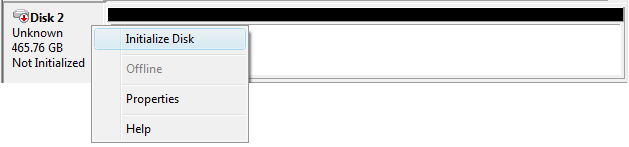
The drive is still not allocated, however, but you can proceed with assigning the physical space on the disk to different partitions by using the right-click menu on the larger right-hand box:
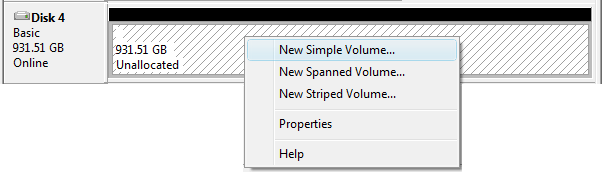
I’m not going to go into the details of how you would want to configure partitions on a new drive, but I just wanted to document the hidden location of the ‘Initialize Disk’ option.
Update 17/2/2010
Like one of the comments below, I recently experienced an issue with Initializing a new USB disk, when I received a ‘Data Error (Cyclic Redundancy Check)’ error during initialization. To cut a long story short, in that instance the problem was with power. The drive was USB-powered, and although it appeared to turn on OK when I plugged it in with one of the cables, it looked like it was functioning. It was only when I plugged in both USB cables (the additional one to help provide extra power) that it operated, and in fact then it showed that it did not even need to be initialized at all! (it had already been formatted etc).
One other problem related to this disk was that even with both USB plugs plugged-in at the computer end, recognition of the drive was still flaky, and required a reboot just for the drive to be recognised and for the drive to be displayed under My Computer.
I was about to take back my new external Sata Dock until I found your article. I’ve been formatting and partitioning disks for years and never saw this before and was getting very frustrated with the Not Initialised message. Simple in the end so thanks for clearly explaining the issue.
You saved a lot of my time struggling with the “not initialized” error message. And I have to say Vista has idiotly poor UIs.
Thank you very much. Thought I had bought a new $150 paper weight, but this helped so much. Kudos to you, sir.
Thank you soooo much for this post. I too was thinking thoughts of doom and gloom….then I found your solution.
Thanks again…
THANX lot very helpfull
Thanks for the tips on initialising a disk…Saved me loads of time
Thanks heaps it worked great, such a small thing but hard to find. cheers!!!
Thank you so much for this post, saved me a lot of frustration with my new laptop drive.
Thanks a million!
Saved me a ton of time and aggrevation.
I can’t wait for Microsoft to do user testing on these tasks, they’d soon see that it’s a silly place to hide the InitialiSe option!
Really grateful for your post!
Cheers for the info, I now have a working 1TB Seagate
Ant
Thank You, ever so Much!!!! I am a computer Scientist and did not know this! You’re awesome and know your “shiznit.” Lololololol….
But, on the real, thanks a “Google.” a Billion is only 9 zero’s, and Google is 100 zero’s……
Now, I jumped out the window!!!! Well, put it this way, Let’s try it!!!! lolol!
cool it worked!!!!! Thanks a “Google!!!!!!!”
Thanks! It worked like a charm!!! *relieved*
Thanks bro, i didnt know i had to do it this way in VISTA, i got it up and running, i just love the way it was with xp
Just bought this 60GB drive at a Swap Meet not knowing if it was any good. You know how it goes when buying things untested at a swap meet. Anyway I too had “Not initialzed” in Disk Management and thought I had just wasted my $30, but then found your tip. Many, many thanks.
of all the information I have seen to help on this problem, this was the simplest and best. It worked. Thanks
PS – Useful even after many years!
Thank You DUDE !!!
I just wanted to post a THANKS, I was so aggravated! AND after your simple pointing it out that i had to click the disk number i feel like a moron now! Thanks again though.
I’m also getting cyclic redundancy check, however my external hdd drive is powered via the mains I have a 1tb core by cnm external hard drive my os is vista 32bit and is showing unallocated and getting the not initialized messege also, 7 have also tried to run it through my bluray player as I have always done and not read via that either
Thank you so much!
Read ur above article. Ur saying an power prblm. Mine is an toshiba 1tb hard drive. I also got same crc error during initializing disk to br. What abt dat extra power u said. I didnt get u. My hard drive doesnt have 2 usb cable. A single 3.0 usb cable.
Any suggestn.
Hi Kishor, Some USB hard disk drives get all of their power from USB (not an additional power supply) and because USB power is quite limited they supply two USB cables in the hope that they can get 2x USB power to spin the disk. Even so, it looks like the drive I was using was problematic. As your drive only has a USB3 port I assume that it is trying to get all the power it needs through a single cable (if it has an external power supply then I doubt power is your problem).
The best I can suggest is that you try different USB3 ports on your computer(s) to see if some have more power than others.